Google Gemini is more than just a chatbot. It is a multimodal AI assistant that can automate tasks across your Google apps, produce photographs and movies, analyze data, and actually aid you in finishing your work. Gemini integrates AI power into your everyday workflow, whether you’re managing customer contacts, researching subjects, or writing emails. Are you prepared to transition from simple Q&A to actual productivity? Let’s set you up.
Google Gemini is a significant change in the way we engage with AI. “How can AI actually help my business beyond just answering questions?” is the question that everyone has been asking, and this is Google’s response. Gemini blends useful integrations across Gmail, Drive, Maps, and more with the conversational comfort of chatbots. Additionally, you may work with text, graphics, music, and even video in one location because it is highly multimodal.
Everything you need to know about using Google Gemini in 2026 is included in this thorough guide. We’ll go over the practical stages that really matter, from your first online chat to sophisticated automated features. By the conclusion, you’ll know how to incorporate AI into your real processes (from automating customer service to training chatbots on your own data), in addition to how to use Gemini.
Personal Experience
I tried Google Gemini as my AI assistant for two weeks instead of ChatGPT. Some things really amazed me. It can search the web in time which is really cool. I used it for a couple of weeks. Here is my experience, with Google Gemini.
What Is Google Gemini and What Can It Do?
Google’s next-generation AI chatbot and personal assistant, Google Gemini, is designed to manage several kinds of data simultaneously. Consider it a tool that is capable of:
• Understand context during lengthy conversations and have natural conversations about almost any subject.
• Create content based on your prompts, such as emails, blog entries, code, or creative writing.
• Utilize text descriptions to create fresh graphics and short videos, or upload visuals for examination.
• Look for up-to-date material online and credit the sources (a task that many AI programs find difficult).
• Analyze the information you supply and perhaps use it to make graphs or charts.
• Connect your apps to Google services, such as Gmail, Calendar, Drive, and Maps, to take actual action.
It can be perplexing because the term “Gemini” actually refers to two different entities. It’s the user-facing chatbot app that provides access to the AI models as well as the family of models that Google created. Similar to how Spur concentrates on providing actionable AI that goes beyond basic Q&A, we’re concentrating on the chatbot experience for this tutorial
What distinguishes Gemini from rivals? Its close interaction with Google’s ecosystem is highlighted in Google’s official documentation. Without ever leaving your chat, you can ask Gemini to locate a file in Drive, summarize an email thread, or provide instructions. Gemini’s greatest strength is the smooth integration with tools you already use on a regular basis.
The most recent version is “our most intelligent model” to yet, according to Google CEO Sundar Pichai, who highlighted performance gains on tests that gauge reasoning and problem-solving skills. As seen by our comparison of Gemini and ChatGPT, this reflects the continuous competition in AI capabilities.
How to Use Gemini on Web (Step-by-Step)
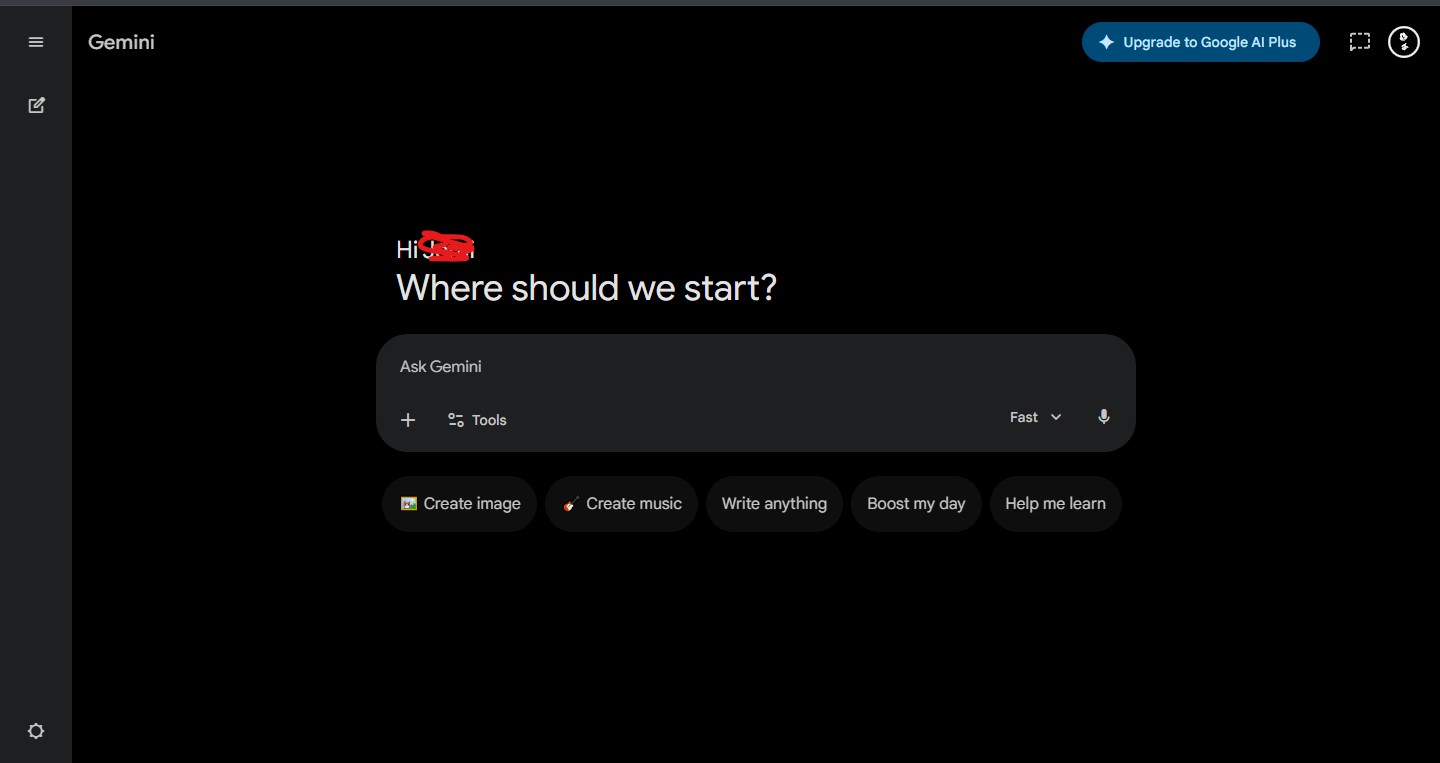
Gemini’s online interface is the simplest way to get started. This is your detailed guide:
Go to gemini.google.com and log in using your Google account to access the website. You must first register for a free account if you don’t already have one. Anyone with a Google account can use Gemini for free.
Just a quick reminder: your administrator may need to grant Gemini access for your company before you can use a Google Workspace account (for business or school).
Select your AI model, if one is available: A model selection option will appear at the top of the chat interface once you have logged in. Gemini provides a variety of models with varied trade-offs. For instance, a “Flash” model is ideal for brief queries because it requires fewer resources and responds more quickly. Although it may be slower, a “Pro” model is better at handling complicated reasoning. At Spur, we’ve found that although the Flash models are excellent for the majority of routine activities, the Pro models provide more nuanced replies for complex customer support scenarios.
Use the default if you’re not sure which to select. In the same way that Spur lets you switch between many AI models like OpenAI, Claude, and Gemini for the best outcomes, you can always swap afterward.
To begin your first discussion, write your query or request in the text box located at the bottom of the screen and press Enter. You can ask anything from “Explain quantum computing in simple terms” to “Draft an email declining a meeting politely.” Gemini takes a few seconds to process your prompt and reply.
Examine sophisticated input tools: Keep an eye out for the tiny icons next to the prompt box. These enable Gemini’s more potent attributes:
How to Use Gemini on Android Phones
In 2026, Google positioned Gemini as the replacement for the iconic Google Assistant, making it a key component of the Android experience. With certain exclusive mobile-only capabilities, the app brings all of Gemini’s power to your phone.
Install or open the app: Gemini is often pre-installed on Android phones, particularly Pixel models. Get the official Google Gemini app from the Play Store if you can’t see it. It requires Android 10 or higher and at least 2GB of RAM, and it is accessible on hundreds of phone models in more than 45 languages.
Import Your Memories and Chats From Another AI Service
Gemini, like a lot of AIs, may tailor its responses to you based on the information you provide and the conversations you’ve had in the past. However, the AI has no history to work with if you’re just getting started. You can import your conversations and memories from another AI, such ChatGPT or Claude, to overcome that obstacle. Any Gemini personal account, whether free or premium, can accomplish this accomplishment. You must have access to another AI service with stored chats and memory and be at least eighteen years old. This is how it operates.
Go to Gemini’s Memory Import site and either log in or select the Get Started button. Choose Import memory to Gemini after selecting Settings at the bottom of the left sidebar. The prompt that you must submit to your other AI service is shown in the first step. Make a copy of that prompt.
Choose Your Model and Mode
Gemini has three modes: Thinking, Pro, and Fast. Gemini 3 Flash is used by Thinking and Fast, whereas Gemini 3.1 Pro is used by Pro.
When it comes to more in-depth research and intricate analysis, Gemini 3.1 Pro is more efficient than Gemini 3 Flash, but Gemini 3 Flash is good for short and simple requests and conversations. Although they can switch from Flash to Pro mode, free users’ daily usage will be severely restricted. Any paying plan subscriber can access Pro with additional daily prompts.
When Gemini is in Thinking mode, it carefully considers your query or request and verifies its analysis before responding. Free users have limited access to Thinking mode as well, while subscribers have hundreds of daily prompts.
You can either hit the button on the mobile app or click the drop-down arrow to the right of the prompt on the website to switch between modes. After choosing Fast, Thinking, or Pro, send in your prompt.

James Eco is an AI tools researcher and content
creator with 3+ years of experience testing and
reviewing AI tools for creators and businesses.
At Get AI Craftly, he provides honest, hands-on
reviews to help readers choose the best AI tools.