My Honest Experience After 5 Months of Using Canva
I use Canva extensively over the last 5 months, from creating social media posts for a small business to designing full presentation decks, YouTube thumbnails, and even printable flyers. I used it almost every day, across both the free and Pro versions, and I can confidently say that Canva has genuinely changed the way I approach design work. Before I started using it, I relied heavily on professional designers for even basic visuals. Now, I handle most of my own design needs in minutes. This guide is built entirely on that hands-on experience, so everything you read here is practical, tested, and real.
What Is Canva and Why Does It Matter?
Canva is a web-based graphic design platform that allows anyone — regardless of design experience — to create professional-looking visuals. Launched in 2013, it has grown into one of the most widely used design tools in the world, with over 170 million monthly active users as of 2024.
The reason Canva matters is simple: it removes the steep learning curve that tools like Adobe Photoshop or Illustrator carry. You do not need to understand layers, blend modes, or vector paths to use Canva effectively. Instead, you get a drag-and-drop interface packed with thousands of templates, fonts, images, and design elements, all organized in one place.
Whether you are a small business owner, a student, a content creator, a marketer, or just someone who wants to make a nice birthday card, Canva has something useful for you.
How to Get Started: Setting Up Your Canva Account
The very first step to use Canva is creating a free account. Here is how I did it:
- Go to canva.com
- Click “Sign up” in the top right corner
- You can sign up using your Google account, Facebook, or email address
- Once signed in, Canva asks what you primarily want to use it for (personal, business, education, etc.) — this helps it recommend relevant templates
I signed up with my Google account, and the whole process took under a minute. After that, I landed on the Canva home dashboard, which is clean, intuitive, and not overwhelming.
Free vs. Pro: Canva’s free plan is genuinely generous. You get access to hundreds of thousands of templates, over a million photos and graphics, and up to 5 GB of cloud storage. The Pro plan (paid monthly or annually) unlocks premium templates, background removal, brand kits, Magic AI tools, and much more. I used the free plan for the first two months, then switched to Pro — and I noticed a meaningful difference in quality and speed.
Understanding the Canva Dashboard
When you first log in, the dashboard is your home base. Here is what you will see:
- Search bar at the top: Type in what you want to create — “Instagram post,” “resume,” “presentation,” or “logo”
- Create a design button: Click this to start from scratch with custom dimensions
- Templates section: Pre-built, categorized designs ready to customize
- Your projects: Files you have already created or saved
- Brand Kit (Pro feature): Store your logo, fonts, and brand colors
One of the things I appreciated after spending months using Canva was how well-organized the dashboard is. Nothing feels buried. You can go from idea to finished design without clicking through dozens of menus.
How to Use Canva: Step-by-Step Design Walkthrough
Let me walk you through the process of creating a design from start to finish — using an Instagram post as the example.
Step 1: Choose a Template or Start Fresh
After opening Canva, search for “Instagram Post” in the search bar. You will see a massive library of templates organized by style — minimal, bold, festive, professional, and so on.
I tested dozens of templates over the past 5 months. My honest advice: do not spend too long picking a template. Most of them are highly customizable, so pick one that has the general layout you like and change everything else.
Alternatively, click “Create a design” and type in custom dimensions (for example, 1080 x 1080 px for a square Instagram post).
Step 2: Customize the Text
Click on any text block in the template to edit it. Canva’s text editor is straightforward:
- Change the font using the font dropdown at the top
- Adjust size, color, alignment, spacing, and effects
- Add text shadows, backgrounds, or curves with the “Effects” button
During my testing, I found that Canva’s font library is excellent — hundreds of options covering everything from elegant serifs to bold display fonts. You can also upload your own custom fonts with the Pro plan.
Pro Tip: Use no more than two or three fonts in a single design. Canva itself often suggests font pairings when you explore the text styles panel.
Step 3: Add or Replace Images
To change a background image or add a photo:
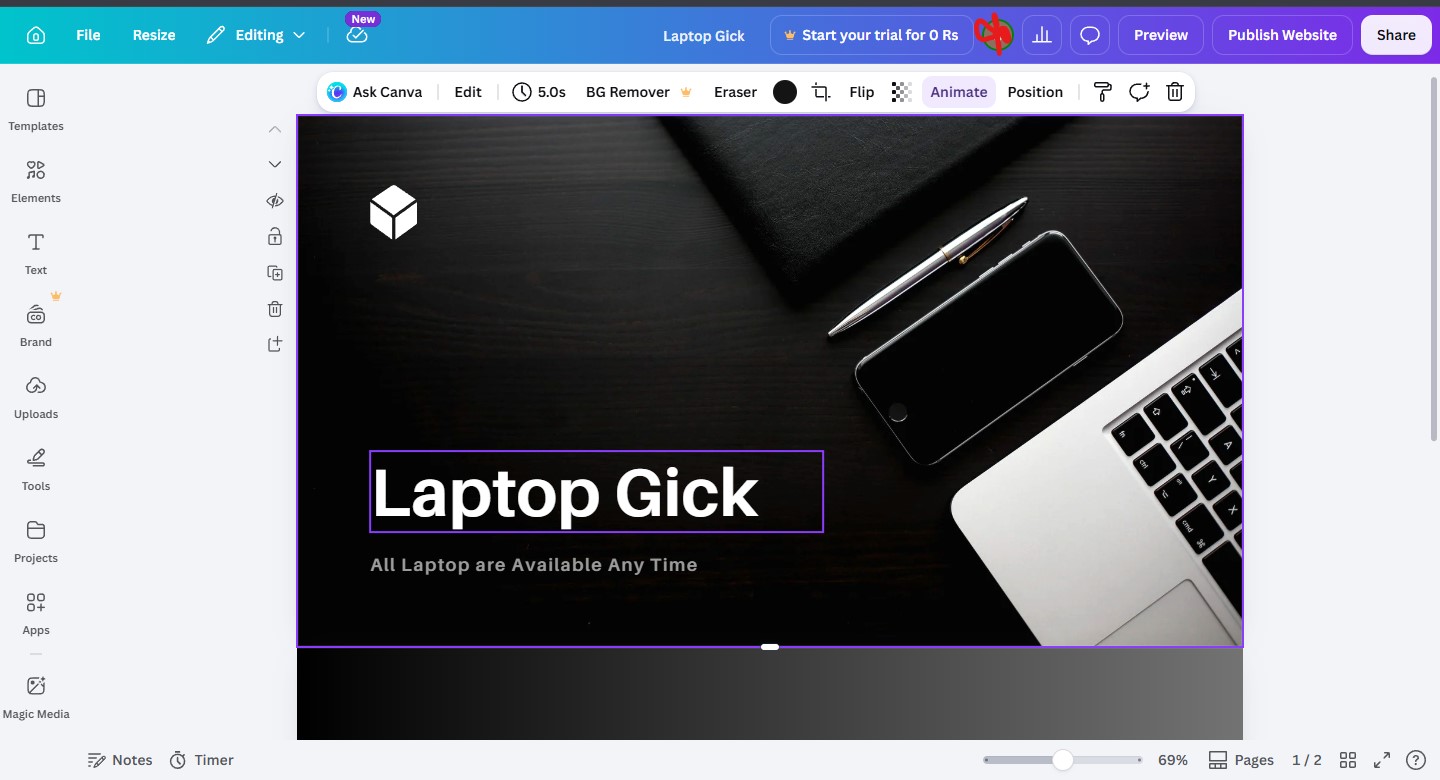
- Click the Elements tab on the left sidebar
- Search for images, illustrations, icons, or shapes
- Drag and drop them directly onto your canvas
Canva has millions of stock photos built in. On the free plan, many are available; others are marked with a crown icon (Pro only). I used both free and Pro images throughout my 5 months of testing — the free library alone is more than enough for most everyday needs.
You can also upload your own photos by clicking the Uploads tab and dragging files from your computer.
Step 4: Adjust Colors and Backgrounds
One of the most powerful things you can do to make a design feel personal is changing the colors to match your brand or style.
- Click on any element to select it
- Use the color picker at the top toolbar to change its color
- For background color, click on an empty area of the canvas and select a color from the toolbar
I spent a lot of time experimenting with Canva’s color palette suggestions. When you pick a color, Canva shows you complementary and matching color options — a small touch that saves a surprising amount of time.
Step 5: Add Elements, Icons, and Graphics
The Elements tab is where Canva truly shines. Inside, you will find:
- Lines and shapes: Rectangles, circles, arrows, and custom shapes
- Icons: Thousands of vector icons across every category
- Stickers and illustrations: Flat design, 3D, hand-drawn, and more
- Frames: Mask your photos into circles, polaroids, or creative shapes
- Charts and graphs: Ideal for data presentations and infographics
During my testing, I used frames extensively for profile photos and product shots. The result always looks polished, even when working quickly.
Step 6: Use Canva’s AI Tools (Magic Features)
Over the past year, Canva has doubled down on AI-powered features. I tested most of them personally:
- Magic Write: An AI text generator inside Canva Docs — useful for drafting copy directly
- Background Remover: Remove image backgrounds with one click (Pro only) — this alone made Pro worth it for me
- Magic Edit: Select part of an image and replace it using an AI prompt
- Magic Eraser: Remove unwanted objects from photos
- Text to Image: Generate AI images from a text prompt
These tools are not perfect, but they save real time. I used the background remover almost daily for product photos, and it worked well about 85–90% of the time in my experience.
Canva Features Worth Knowing About
Canva Presentations
Canva’s presentation builder is a genuine alternative to PowerPoint or Google Slides. You can:
- Build slides using templates or from scratch
- Present directly from Canva in “Presenter View” — which shows your speaker notes on one screen while the slides appear on another
- Enable “Presenter Studio” to record yourself alongside your slides (great for video presentations)
I created three full presentations using Canva over the past few months. The experience was faster than PowerPoint and the output looked more modern without extra effort.
Canva Docs
Canva Docs is a word processor built inside Canva. It is closer to Notion than Microsoft Word — you can embed Canva designs, charts, and visual elements directly into a document. I used it for creating reports and client proposals, and it worked well for anything visual-heavy.
Canva Websites
Yes — you can build simple websites using Canva. The websites are single-page and not suitable for complex builds, but for a portfolio page, event landing page, or link-in-bio page, it works beautifully. I tested this by building a simple event RSVP page, and it went live in about 20 minutes.
Canva Print
Canva has a built-in printing service. You can design something and order printed versions (business cards, flyers, posters, mugs, T-shirts) directly through Canva. I have not personally ordered from their print service, but the template quality for print-ready designs is solid, and they ship to many countries.
Canva Tips From 5 Months of Real Use
Here are the practical lessons I picked up through daily use:
1. Use the Grid and Alignment Tools Press “R” to open rulers or use Canva’s smart alignment guides. These show up automatically when you drag elements near the center or edges, helping you align things precisely.
2. Lock Elements You Do Not Want to Move Right-click any element and choose “Lock position.” This prevents accidental nudging when you are working on a busy design.
3. Use “Copy Style” to Keep Things Consistent Select a text block, click the three dots, and choose “Copy style.” Then select another text block and “Paste style.” This copies font, size, and color — a huge time saver when maintaining consistency.
4. Organize with Pages If you are working on a multi-page document or a series of social posts, use Canva’s pages feature (visible at the bottom of the canvas). You can duplicate pages to keep formatting consistent across a set.
My Rating: 8.4/10
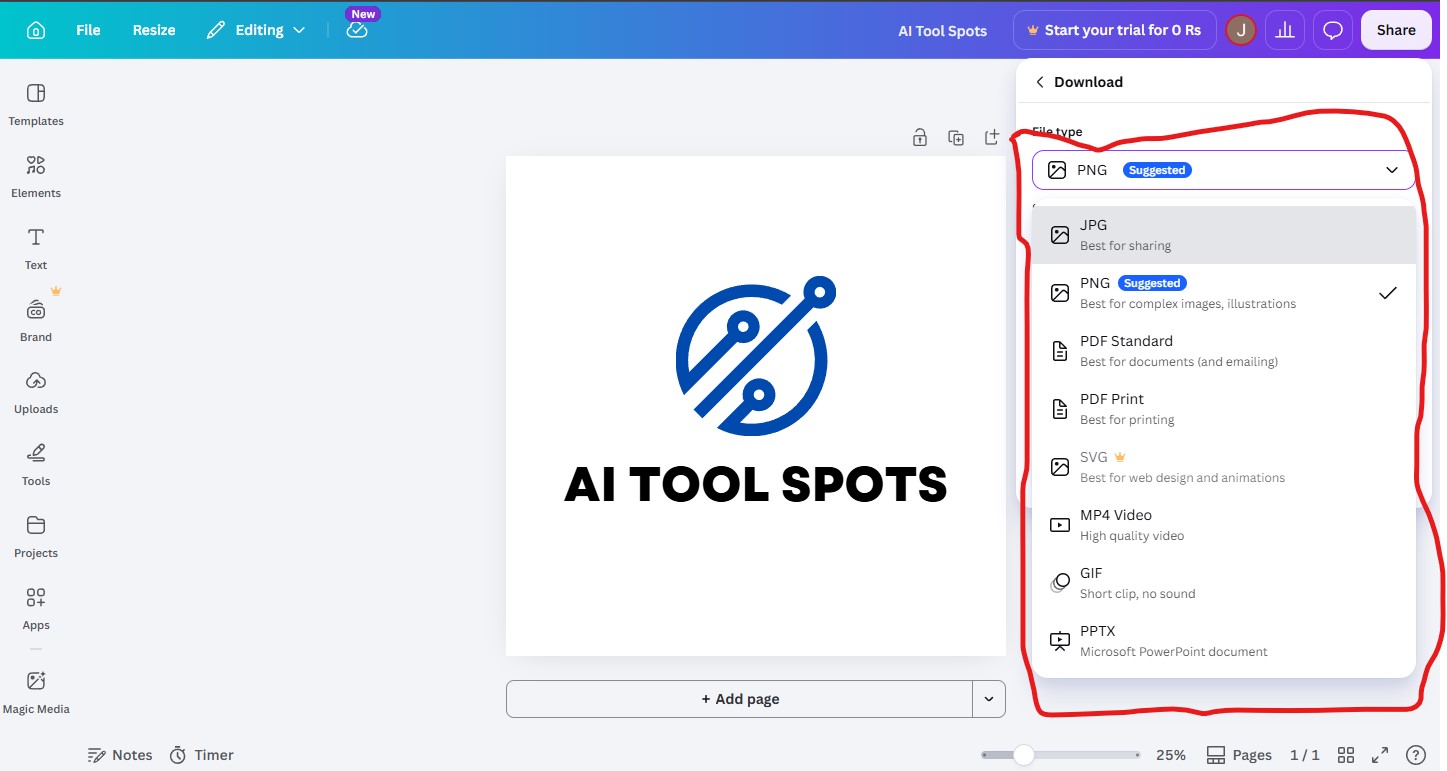
5. Download in the Right Format
- PNG: Best for images with transparent backgrounds
- JPG: Smaller file size, best for photos
- PDF (Print): Best for documents meant for printing
- MP4: For animated designs and video posts
- GIF: For short looping animations
Who Should Use Canva?
Based on my 5 months of daily testing, here is who benefits most from Canva:
- Small business owners who need marketing materials without hiring a designer
- Social media managers who produce high-volume content regularly
- Educators and students who create presentations, posters, and reports
- Content creators and bloggers who design thumbnails, pins, and graphics
- Nonprofits — Canva offers a free Pro plan for registered nonprofits through Canva for Nonprofits
- Beginners with zero design experience — the learning curve is genuinely low
Canva Free vs. Canva Pro: Is It Worth It?
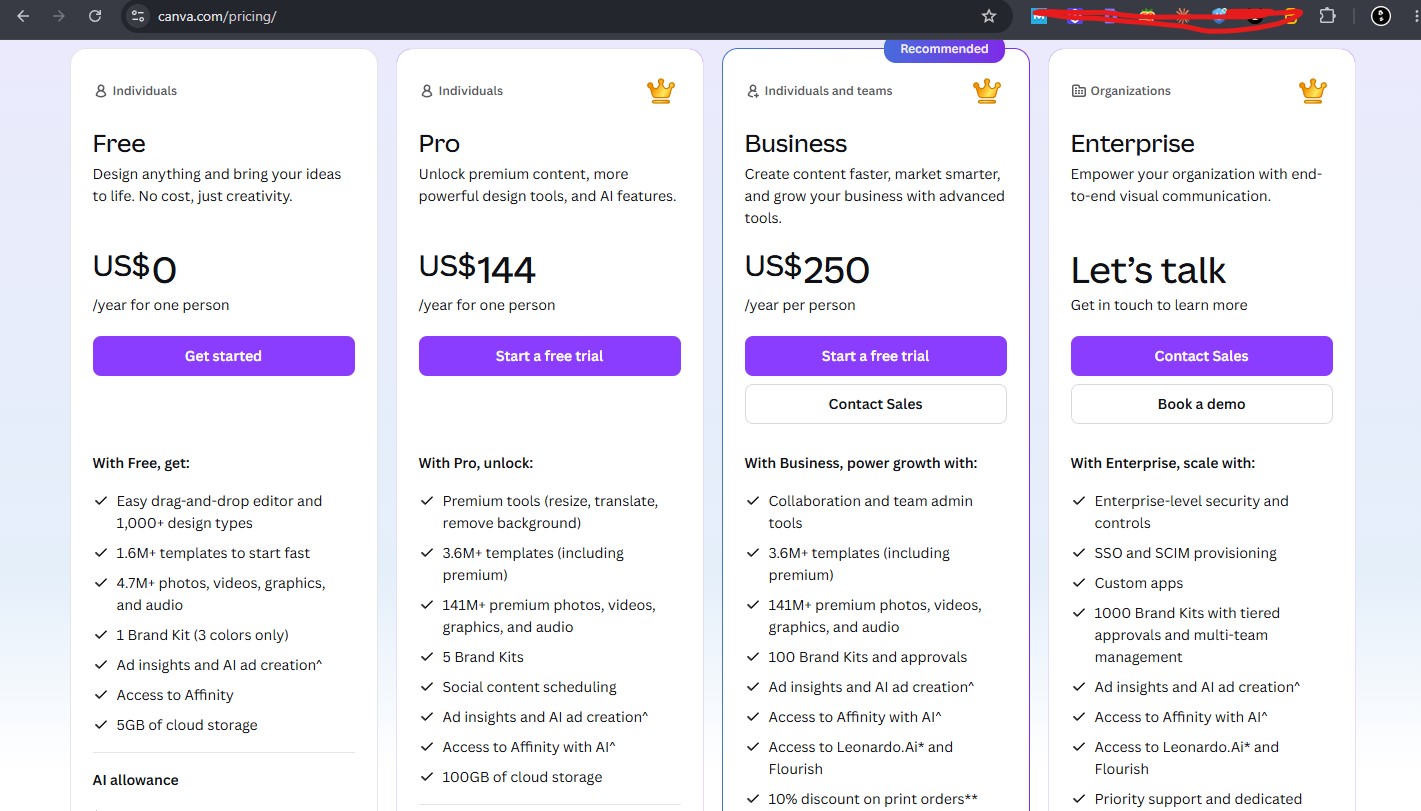
After using both, here is my honest breakdown:
| Feature | Free | Pro |
| Templates | 250,000+ | 610,000+ |
| Storage | 5 GB | 1 TB |
| Background Remover | ✗ | ✓ |
| Brand Kit | Limited | Full |
| Magic AI Tools | Limited | Full |
| Premium Elements | ✗ | ✓ |
| Price | Free | ~$144/month |
My verdict: The free plan is excellent for casual users. If you are using Canva professionally — for clients, a business, or regular content creation — Pro is absolutely worth the cost. The background remover and brand kit alone justified it for me within the first week of upgrading.
Common Mistakes to Avoid When You Use Canva
Even after months of use, I still occasionally make these mistakes — and I see them frequently in beginner work:
- Overcrowding the design: Less is more. Leave white space.
- Using too many fonts: Stick to two, maximum three.
- Ignoring the template’s original spacing: Canva templates are designed with purpose. Adjusting spacing too aggressively often makes designs look amateurish.
- Downloading at low resolution: Always choose the highest quality when downloading, especially for print.
- Not saving: Canva auto-saves, but always check before closing a tab.
Final Thoughts: Should You Use Canva?
After 5 months of hands-on testing across dozens of project types, my answer is a clear yes — for most people, Canva is the best starting point for design work. It is fast, intuitive, and powerful enough for the vast majority of everyday design needs.
The platform continues to improve rapidly, especially with its AI features. What used to take me an hour in other tools now takes 10 to 15 minutes in Canva.
If you have never tried it, start with the free plan today. Create one design — a simple social post or a quick flyer. That first experience will tell you everything. Based on what I have seen over the past 5 months, most people who try Canva once find reasons to keep coming back.
Canva Pros and Cons: My Honest Assessment
After 5 months of daily use, I have a clear picture of where Canva genuinely excels and where it still falls short. Here is my unfiltered take:
✅ Pros of Using Canva
1. Incredibly Easy to Learn
2. Massive Template and Asset Library
3. Works Entirely in the Browser
4. Collaboration Features
5. Regular Feature Updates
6. Affordable Free Tier
❌ Cons of Using Canva
1. Limited Advanced Design Control
2. Internet Dependency
3. Premium Content Costs Add Up
Canva Alternatives Worth Considering
Canva is excellent, but it is not the only option. Depending on your specific needs, one of these alternatives might actually serve you better. I have explored most of these during my time testing design tools.
1. Adobe Express (formerly Adobe Spark)
Best for: Users already in the Adobe ecosystem
Adobe Express is Adobe’s direct answer to Canva. It offers a similarly beginner-friendly interface with templates, drag-and-drop editing, and integration with Adobe Stock. The key advantage is tight integration with other Adobe tools like Photoshop and Illustrator — useful if you already use Creative Cloud. The free plan is decent, but the Pro plan ($9.99/month with Creative Cloud) unlocks the real power. In my experience, Adobe Express is slightly more polished for certain tasks but has fewer templates than Canva.
2. Figma
Best for: UI/UX designers and product teams
Figma is a professional-grade design and prototyping tool. It is far more powerful than Canva when it comes to creating app interfaces, wireframes, and design systems. However, the learning curve is significantly steeper, and it is overkill for someone who just needs social media graphics. Figma has a free plan with generous features. If your work involves digital product design, Figma is the better choice over Canva.
3. Adobe Photoshop
Best for: Photo editing and pixel-perfect professional design
Photoshop remains the gold standard for photo editing and complex image manipulation. If your design work involves heavy photo retouching, compositing, or creating high-resolution assets for print, Photoshop offers control that Canva simply cannot match. That said, it requires a significant time investment to learn and costs $22.99/month as a standalone app.
My honest take: for most people reading this guide, Canva remains the best starting point. The alternatives above are worth exploring only if you have a specific need that Canva does not serve well.
Frequently Asked Questions About Canva
After using Canva for 5 months and sharing my experiences with others, these are the questions that come up most often. I have answered each one based on direct, personal experience.
Q1: Is Canva completely free to use?
Yes — Canva has a genuinely useful free plan. You get access to hundreds of thousands of templates, over a million photos and graphics, and 5 GB of storage at no cost. Certain premium elements, templates, and features (like background removal and brand kits) require a Pro subscription. But the free plan is not a trial — it is a permanent tier that many casual users never need to upgrade from.
Q2: Do I need to download any software to use Canva?
No. Canva runs entirely in your web browser — Chrome, Safari, Firefox, and Edge all work well. There is also a Canva mobile app for iOS and Android if you prefer designing on your phone or tablet. I used both the browser version and the mobile app throughout my 5 months of testing; the browser version is noticeably more capable for complex designs.
Q3: Can I use Canva designs commercially?
Yes, in most cases. Designs you create using Canva’s free content can be used for commercial purposes. However, some premium elements have specific licensing restrictions. Canva provides a license summary for each element if you click on it. When in doubt, check before using a design commercially, especially if it involves recognizable stock photos or specific illustrations.
Q4: Is Canva good for logo design?
Canva can produce decent logos, especially for small businesses and startups with limited budgets. It has a dedicated logo maker with hundreds of templates. However, one important limitation: you cannot download a logo as a true vector file (SVG) on the free plan — SVG export requires Pro. For professional, scalable logo work, a tool like Figma or Adobe Illustrator gives you more control. That said, I have created several functional logos in Canva that clients were happy with.
Q5: How does Canva compare to Photoshop?
They serve very different purposes. Canva is built for speed and simplicity — creating polished visuals quickly with minimal learning curve. Photoshop is built for depth and precision — pixel-level photo editing, complex compositing, and professional retouching. If you need to remove a background or adjust brightness in a photo for a social post, Canva handles it. If you need to blend two photos seamlessly or do serious retouching work, Photoshop is the better tool. I use both — Canva for most everyday work, and Photoshop for specific photo-heavy projects.

James Eco is an AI tools researcher and content
creator with 3+ years of experience testing and
reviewing AI tools for creators and businesses.
At Get AI Craftly, he provides honest, hands-on
reviews to help readers choose the best AI tools.