Creating stunning visuals no longer requires advanced design skills. With tools like Microsoft Bing AI Image Creator, anyone can turn simple text into eye-catching digital art in seconds.
This powerful AI tool is changing how people create content. From marketers to students, users can generate unique images just by describing what they imagine. No design experience needed.
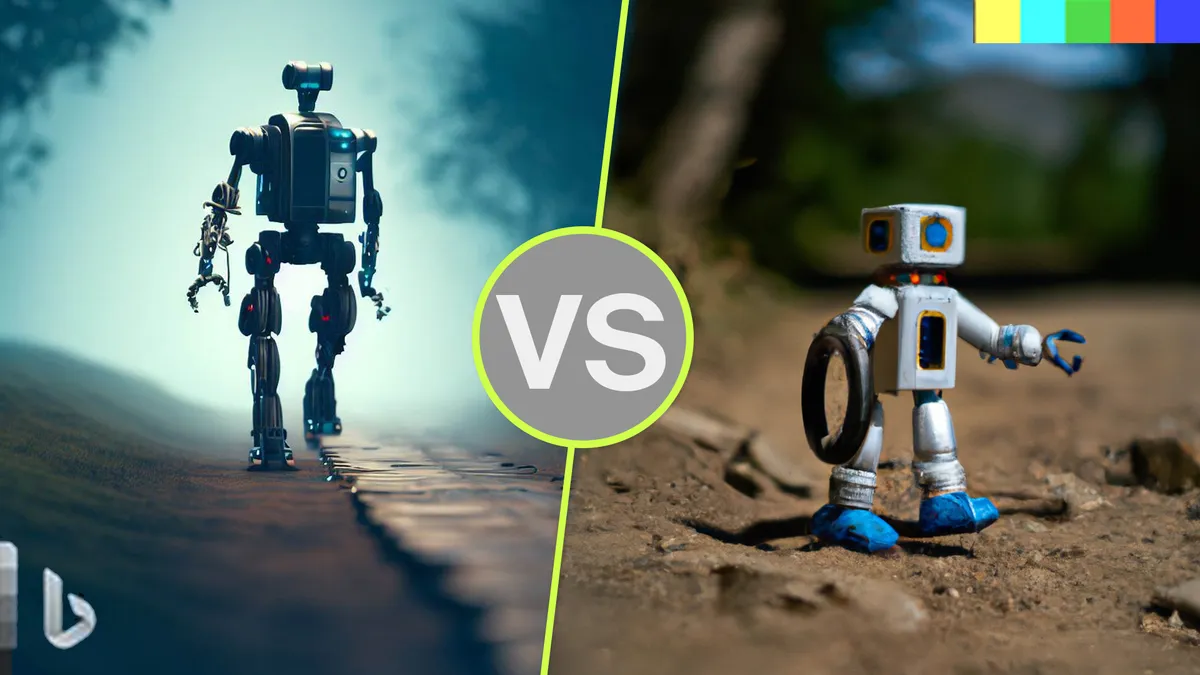
Key Features and Benefits
The Microsoft Bing AI Image Creator stands out because it combines powerful AI with simplicity. Whether you’re a beginner or a professional, it offers tools that make image creation fast and accessible.
Powerful Text-to-Image Generation
At its core, this tool converts written descriptions into high-quality visuals. You simply type what you imagine, and the AI brings it to life. From realistic portraits to fantasy scenes, the possibilities are nearly endless.
Multiple Image Variations
Each time you generate an image, the tool provides several variations. This gives you options to choose from without rewriting your prompt. It also helps refine your creative direction quickly.
Wide Range of Artistic Styles
You can create images in different styles like:
- Realistic photography
- Digital art
- Cartoon or anime
- Abstract and surreal designs
This flexibility makes it useful for various creative needs.
Free and Easy to Use
Unlike many design tools, Microsoft Bing AI Image Creator is free to access with a Microsoft account. The interface is simple, making it beginner-friendly with no learning curve.
Fast Image Generation
The AI generates images within seconds. This speed allows users to experiment, iterate, and produce visuals quickly without waiting long.
Integration with Microsoft Ecosystem
The tool works smoothly with platforms like Microsoft Copilot and Microsoft Edge. This makes it easy to create images while browsing or working on other tasks.
Boosts Creativity and Productivity
Instead of spending hours designing, you can generate visuals instantly. This helps:
- Content creators save time
- Marketers produce quick visuals
- Students enhance projects
No Design Skills Required
You don’t need to learn complex software like Adobe Photoshop. Just describe your idea clearly, and the AI handles the rest.
How Bing AI Image Generator Works
The magic behind Microsoft Bing AI Image Creator lies in advanced artificial intelligence that turns simple text into detailed visuals. Understanding how it works will help you create better and more accurate images.
AI Models Behind the Tool
This image generator is powered by cutting-edge AI models developed in collaboration with OpenAI. These models are trained on massive datasets of images and text.
They learn patterns such as:
- Objects and their shapes
- Colors and lighting
- Artistic styles and compositions
Because of this training, the AI can understand what you describe and generate a matching image.
Text-to-Image Generation Explained
The process starts with your prompt (a text description). The AI reads and analyzes your words to understand:
- What objects should appear
- The setting or background
- The style or mood
It then creates an image from scratch based on that understanding. This is called text-to-image generation.
For example, if you type:
“a futuristic city at sunset with flying cars,”
the AI will combine all those elements into a single visual.
Understanding Prompts and Interpretation
The quality of the output depends heavily on how clearly you describe your idea. The AI breaks your prompt into key components like:
- Subject (what the image is about)
- Style (realistic, cartoon, painting, etc.)
- Details (colors, lighting, angles)
More detailed prompts usually produce better results.
Image Generation and Variations
Once the AI processes your prompt, it generates multiple versions of the image. Each variation is slightly different in:
- Composition
- Perspective
- Details
This allows you to pick the best result or refine your prompt further.
Continuous Learning and Improvement
The technology behind Microsoft Bing AI Image Creator keeps improving over time. Updates enhance:
- Image quality
- Accuracy of prompts
- Realism and detail
Getting Started with Bing Image Creator
Getting started with Microsoft Bing AI Image Creator is simple and takes just a few minutes. You don’t need any technical skills—just an idea and a basic setup.
Create or Sign in to Your Microsoft Account
To use the tool, you need a free account from Microsoft.
- If you already have one (like Outlook or Hotmail), just sign in
- If not, you can quickly create a new account
This account gives you access to the image generator and related tools.
Access the Image Creator Tool
You can use the tool in multiple ways:
- Directly through the Bing Image Creator website
- Inside Microsoft Copilot
- Through the Microsoft Edge browser
This flexibility allows you to create images wherever it’s most convenient.
Explore the User Interface
Once you open the tool, you’ll see a clean and simple dashboard. Key elements include:
- Prompt box – where you type your image description
- Generate button – to create images
- Gallery section – where your generated images appear
- History (if available) – to revisit past creations
Everything is designed to be beginner-friendly, so you won’t feel overwhelmed.
Understanding Credits or Boosts
The tool may use a system of “boosts” or credits. These help generate images faster.
- You usually get free boosts daily
- When boosts run out, images may take longer to generate
This system ensures fair usage for everyone.
Start Exploring Immediately
Once you’re signed in and familiar with the interface, you can start creating right away. Just type your idea and let the AI do the rest.
Step-by-Step Guide to Creating Images
Creating images with Microsoft Bing AI Image Creator is quick and straightforward. Follow these simple steps to turn your ideas into visuals.
Step 1: Write Your Prompt
Start by typing a clear description of the image you want.
Be specific. Include:
- Subject (what you want to see)
- Style (realistic, cartoon, painting, etc.)
- Details (colors, lighting, mood, background)
Example:
“A realistic portrait of a lion wearing a crown, dramatic lighting, dark background”
The more detailed your prompt, the better the result.
Step 2: Generate the Images
After entering your prompt, click the Generate button.
The AI will process your request and create multiple image variations within seconds. Each version will have slight differences.
Step 3: Review the Results
Once the images appear, take time to evaluate them.
Look for:
- Accuracy to your prompt
- Image clarity and detail
- Overall composition
Choose the one that best matches your vision.
Step 4: Refine or Regenerate
If the results are not perfect, don’t worry.
You can:
- Edit your prompt to add more details
- Change style or mood
- Generate new variations
This step is key to getting high-quality results.
Step 5: Download and Save Your Image
When you’re satisfied, download your selected image.
You can use it for:
- Social media content
- Blog posts
- Marketing materials
- Personal projects
Step 6: Optional Editing
For further improvements, you can edit your image using tools like Microsoft Designer or Adobe Photoshop.
Writing Effective Prompts
Your results with Microsoft Bing AI Image Creator depend heavily on how well you write your prompts. A clear and detailed prompt can turn a simple idea into a stunning visual.
Why Detailed Prompts Matter
The AI relies entirely on your description. If your prompt is vague, the output will be too.
For example:
- Weak prompt: “a dog”
- Strong prompt: “a golden retriever running in a sunny park, realistic style, soft lighting, high detail”
More details help the AI understand exactly what you want.
Key Elements of a Strong Prompt
To get better results, include these elements:
- Subject – What is the main focus?
- Style – Realistic, cartoon, painting, 3D, etc.
- Environment – Background or setting
- Lighting – Bright, soft, cinematic, dark
- Mood – Happy, dramatic, mysterious
- Details – Colors, textures, camera angle
Combining these creates a complete instruction for the AI.
Use Descriptive and Specific Language
Avoid generic words. Be precise and descriptive.
Instead of:
- “a house”
Try:
- “a modern glass house on a mountain cliff at sunset, cinematic lighting, ultra-realistic”
This level of detail improves accuracy and quality.
Experiment with Styles and Themes
Don’t stick to one type of prompt. Try different styles like:
- Fantasy and sci-fi
- Vintage or retro
- Minimalist or abstract
- Anime or digital illustration
Experimentation helps you discover what works best.
Use Prompt Structure for Consistency
A simple formula you can follow:
[Subject] + [Style] + [Environment] + [Lighting] + [Details]
Example:
“a futuristic robot, cyberpunk style, neon city background, night lighting, highly detailed”
This structure keeps your prompts organized and effective.
Learn Through Iteration
You may not get the perfect image on the first try.
Improve by:
- Adding more details
- Removing unnecessary words
- Changing styles or perspectives
Each attempt helps you understand how the AI responds.
Editing and Refining Your Images
Creating an image is just the first step. To get truly impressive results with Microsoft Bing AI Image Creator, you need to refine and improve your outputs.
Review Your First Results Carefully
After generating images, don’t rush to download the first one.
Look closely at:
- Details and sharpness
- Accuracy to your prompt
- Lighting and composition
Small flaws are common, and spotting them early helps you improve faster.
Regenerate for Better Variations
One of the easiest ways to refine your image is to generate new versions.
Even with the same prompt, the AI produces different results. This allows you to:
- Explore new compositions
- Find a more accurate version
- Discover unexpected creative outcomes
Sometimes, the perfect image is just one click away.
Improve Your Prompt for Better Results
If the image isn’t what you expected, adjust your prompt.
You can:
- Add missing details
- Specify style more clearly
- Change mood or lighting
For example, adding “highly detailed” or “cinematic lighting” can significantly enhance quality.
Use External Editing Tools
For advanced refinement, you can edit your images using tools like Microsoft Designer or Adobe Photoshop.
These tools help you:
- Adjust colors and brightness
- Crop and resize images
- Add text or branding elements
This is especially useful for professional or marketing use.
Combine AI and Manual Creativity
AI gives you a strong starting point, but combining it with your own creativity leads to the best results.
You can:
- Merge ideas from different outputs
- Enhance details manually
- Customize images for specific needs
Keep Iterating for Perfection
Great results rarely happen in one try. The key is iteration.
Repeat the process:
- Generate
- Review
- Refine
Each cycle brings you closer to your ideal image.
Exploring Different Art Styles and Use Cases
One of the biggest strengths of Microsoft Bing AI Image Creator is its ability to create images in a wide variety of styles. This makes it useful for both creative and practical purposes.
Create Images in Multiple Art Styles
You are not limited to one type of visual. The AI can generate images in styles such as:
- Realistic photography – lifelike images with natural lighting
- Digital art – modern, polished illustrations
- Cartoon and anime – fun, expressive characters
- Fantasy and sci-fi – imaginative worlds and futuristic scenes
- Abstract art – creative and non-traditional visuals
By simply changing your prompt, you can switch between styles instantly.
Match Visuals to Your Purpose
Different use cases require different styles. Choosing the right one improves impact.
For example:
- Use realistic images for blogs and professional content
- Use cartoon styles for social media or entertainment
- Use fantasy or sci-fi for storytelling and creative projects
This flexibility makes the tool valuable across industries.
Content Creation and Social Media
Creators can generate eye-catching visuals quickly for:
- Instagram posts
- YouTube thumbnails
- Blog featured images
- Ads and promotional graphics
Instead of searching for stock images, you can create unique content tailored to your brand.
Marketing and Branding Applications
Businesses can use AI-generated visuals for:
- Product mockups
- Marketing campaigns
- Website graphics
- Email banners
This reduces the need for expensive design resources.
Personal and Creative Projects
Beyond professional use, you can explore creativity for fun:
- Designing characters or concepts
- Creating wallpapers
- Visualizing story ideas
- Experimenting with art styles
Endless Creative Possibilities
With Microsoft Bing AI Image Creator, your imagination is the only limit. You can test ideas instantly and explore styles you may never have tried before.
Productivity and Professional Use Cases
The real power of Microsoft Bing AI Image Creator goes beyond creativity—it significantly improves productivity across different fields. It helps individuals and businesses create high-quality visuals in less time and with fewer resources.
Marketing and Branding Made Easier
Marketers can quickly generate visuals for campaigns without relying on designers.
You can create:
- Social media graphics
- Ad creatives
- Website banners
- Product visuals
This speeds up content production and reduces costs, especially for small businesses.
Faster Design Workflows
Designers can use AI as a starting point instead of creating everything from scratch.
This helps to:
- Generate initial concepts
- Explore multiple design ideas quickly
- Save time on repetitive tasks
Tools like Microsoft Designer can further refine these AI-generated images for professional use.
Content Creation at Scale
Bloggers, YouTubers, and creators can produce visuals consistently.
Use cases include:
- Blog featured images
- YouTube thumbnails
- Infographics
- Visual storytelling
Instead of searching for stock images, you can create custom visuals tailored to your content.
Educational Applications
Students and educators can use AI-generated images to enhance learning.
Examples include:
- Visual explanations for concepts
- Presentation graphics
- Creative assignments
This makes learning more engaging and interactive.
Supporting Freelancers and Entrepreneurs
Freelancers can deliver faster results to clients by using AI tools.
They can:
- Create design drafts quickly
- Offer more affordable services
- Handle multiple projects efficiently
This improves both productivity and income potential.
Saving Time and Reducing Costs
One of the biggest advantages is efficiency.
With Microsoft Bing AI Image Creator, you:
- Spend less time designing
- Avoid expensive software or resources
- Reduce dependency on large design teams
Integration with Microsoft Tools
One of the strongest advantages of Microsoft Bing AI Image Creator is how well it fits into the wider Microsoft ecosystem. This makes it easier to create, edit, and use images without switching between multiple platforms.
Seamless Use with Microsoft Copilot
You can access the image generator directly through Microsoft Copilot.
This allows you to:
- Generate images while chatting with AI
- Refine prompts in real time
- Combine text and visuals in one place
It creates a smooth workflow for both beginners and professionals.
Integration with Microsoft Edge
Using Microsoft Edge makes the process even more convenient.
You can:
- Open the image generator instantly in the browser
- Create visuals while browsing content
- Save or download images without leaving your workspace
This tight integration improves speed and accessibility.
Enhancing Designs with Microsoft Designer
For advanced editing, you can move your generated images into Microsoft Designer.
Here you can:
- Add text overlays and branding
- Adjust layouts and colors
- Create social media posts or marketing visuals
It turns AI-generated images into ready-to-use professional designs.
Mobile Accessibility for On-the-Go Creation
The tool is also accessible on mobile devices through Bing or Microsoft apps.
This means you can:
- Create images anywhere
- Share visuals instantly on social media
- Work on ideas without a desktop
It’s perfect for creators who are always on the move.
A Connected Creative Ecosystem
The real value comes from how all these tools work together.
With one Microsoft account, you can:
- Generate images in Bing Image Creator
- Refine ideas in Copilot
- Edit in Designer
- Access everything through Edge or mobile
Safety, Ethics, and Content Policies
While Microsoft Bing AI Image Creator is a powerful creative tool, it is designed with strict safety and ethical guidelines. These rules ensure responsible use and prevent harmful or inappropriate content creation.
Built-in Content Safety Filters
The system includes automated filters that monitor prompts and generated images.
These filters help to block:
- Violent or harmful content
- Adult or inappropriate material
- Hate symbols or offensive imagery
- Misleading or harmful representations
This ensures the platform remains safe for all users.
Responsible Use of AI-Generated Images
AI-generated visuals should be used ethically and responsibly.
You should:
- Avoid creating misleading or fake content
- Respect copyright and intellectual property
- Use images for honest and transparent purposes
Misuse of AI tools can lead to ethical and legal issues.
Content Restrictions and Limitations
Not every idea can be generated. The tool may restrict prompts that involve:
- Real people in sensitive contexts
- Political manipulation or propaganda
- Harmful stereotypes
- Restricted or unsafe themes
These limitations exist to protect users and maintain trust.
Safe Creative Freedom
Even with restrictions, users still have a wide creative range.
You can safely create:
- Art and illustrations
- Marketing visuals
- Educational content
- Fantasy and fictional scenes
This balance allows creativity without risk.
Ethical Considerations for Creators
As AI becomes more common, creators should think carefully about how they use generated content.
Best practices include:
- Being transparent when using AI-generated visuals
- Avoiding plagiarism or imitation of real artists’ work
- Giving credit when combining AI with other tools like Microsoft Designer
Protecting Users and Maintaining Trust
The goal of these policies is not to limit creativity but to ensure a safe and fair environment for everyone.
By following these guidelines, users can enjoy the full power of AI while staying responsible and ethical.
Rewards System and Free Usage Model
One of the reasons Microsoft Bing AI Image Creator is so widely used is its accessible pricing model. It allows users to create images for free, while also offering a “boost” system to manage usage and speed.
Free Access for Everyone
The tool is available to anyone with a Microsoft account from Microsoft.
You don’t need:
- A paid subscription
- Professional design software
- Any advanced setup
This makes it ideal for beginners, students, and creators who want to experiment without cost.
Understanding Boosts and Credits
The system often uses “boosts” to speed up image generation.
Here’s how it works:
- You receive a limited number of boosts daily
- Each boost helps generate images faster
- Once boosts are used, images can still be created, but at a slower speed
This ensures fair usage for all users.
Daily Reset and Continued Usage
Boosts usually refresh daily, allowing users to continue creating consistently.
Even without boosts:
- You can still generate images
- You may just experience slightly longer wait times
This keeps the tool usable at all times.
Microsoft Rewards Integration
In some cases, users may earn additional benefits through the Microsoft ecosystem.
Through activities in Microsoft services like search or browsing, users may:
- Earn reward points
- Unlock additional perks or credits
- Extend their usage experience
This creates a gamified experience for regular users.
Why the Free Model Matters
The free-access approach makes AI image generation widely available.
It benefits:
- Students working on projects
- Small businesses with limited budgets
- Content creators starting out
- Casual users exploring creativity
Balanced Performance System
The combination of free access and boosts helps maintain performance.
It ensures:
- Stable system performance
- Fair usage distribution
- Smooth experience for all users
Limitations and Common Challenges
Even though Microsoft Bing AI Image Creator is powerful and easy to use, it is not perfect. Like all AI tools, it comes with certain limitations that users should understand before relying on it for professional work.
Inconsistent Image Quality
One of the most common challenges is variation in output quality.
Sometimes the AI produces:
- Highly detailed, realistic images
- Or less accurate and slightly distorted visuals
This inconsistency means you may need multiple attempts to get the perfect result.
Prompt Sensitivity Issues
The tool is highly dependent on how you write your prompt.
Small changes can lead to very different results. This can be frustrating when:
- The output doesn’t match expectations
- Important details are ignored
- The style shifts unexpectedly
Learning how to write better prompts becomes essential.
Limited Fine Control
Unlike professional design tools such as Adobe Photoshop, this AI generator does not offer deep manual control.
You cannot:
- Precisely adjust object placement
- Edit individual elements in detail
- Control every pixel of the image
This limits its use for highly specific design tasks.
Content Restrictions
The system includes strict safety filters that may block or modify certain prompts.
This can restrict:
- Sensitive or controversial topics
- Realistic depictions of certain subjects
- Some creative ideas that fall outside policy
While these rules improve safety, they can feel limiting for advanced users.
Occasional Rendering Errors
Like most AI systems, it may sometimes produce:
- Misspelled text in images
- Strange or unnatural body parts
- Incorrect object proportions
These errors require regeneration or prompt adjustments.
Dependence on Internet and Platform
Since it is cloud-based, you need:
- A stable internet connection
- Access to Microsoft services
Without this, the tool cannot function.
Not a Full Replacement for Professional Tools
While it is great for quick creation, it cannot fully replace advanced software like Adobe Photoshop or professional design workflows.
It works best as:
- A creative assistant
- A concept generator
- A fast visual tool
Tips and Tricks for Best Results
To get the most out of Microsoft Bing AI Image Creator, you need more than just basic prompts. A few smart techniques can significantly improve the quality, accuracy, and creativity of your images.
Be Extremely Specific in Your Prompts
The AI performs best when it clearly understands your vision.
Instead of writing:
- “a car”
Try:
- “a red sports car parked on a rainy street at night, neon reflections, cinematic lighting, ultra-realistic”
Adding details like mood, lighting, and environment improves results instantly.
Use Style Keywords Consistently
Always include a style reference in your prompt.
For example:
- “photorealistic”
- “digital art”
- “anime style”
- “oil painting”
- “3D render”
This helps the AI stay consistent with your creative direction.
Experiment with Prompt Variations
Small changes can lead to completely different results.
Try:
- Reordering words in your prompt
- Adding or removing adjectives
- Changing perspective (close-up, aerial view, wide shot)
This experimentation helps you discover the best formulation.
Use Lighting and Mood Descriptions
Lighting dramatically affects image quality.
Include terms like:
- Soft lighting
- Golden hour
- Dramatic shadows
- Neon glow
- Studio lighting
This makes your images look more professional and cinematic.
Iterate Instead of Starting Over
Don’t discard a good prompt too quickly.
Instead:
- Modify it slightly
- Add missing details
- Regenerate multiple versions
Often, small tweaks produce much better results than starting from scratch.
Combine AI with External Tools
After generating images, refine them using tools like Microsoft Designer.
You can:
- Add text overlays
- Adjust layout for social media
- Improve composition and branding
Keep Prompts Structured
A reliable structure improves consistency:
Subject + Style + Environment + Lighting + Details
Example:
“A futuristic city, cyberpunk style, rainy night environment, neon lighting, highly detailed, cinematic view”
Learn from Each Output
Every generated image teaches you something.
Pay attention to:
- What worked well
- What didn’t match your expectations
- How small changes affect results
Over time, your prompting skills improve significantly.
Alternatives to Bing AI Image Generator
While Microsoft Bing AI Image Creator is a strong and free option, it is not the only tool available. Many other AI image generators offer different features, styles, and levels of control. Exploring alternatives helps you choose the right tool for your needs.
Midjourney – Best for Artistic Quality
Midjourney is one of the most popular AI art tools.
It is known for:
- Extremely high-quality artistic images
- Strong creativity and stylization
- Unique and detailed outputs
However, it requires a paid subscription and works mainly through Discord.
DALL·E – Strong Prompt Understanding
DALL·E is developed by OpenAI.
It is widely used for:
- Accurate prompt interpretation
- Clean and realistic image generation
- Easy integration with ChatGPT
It is great for users who want balance between realism and creativity.
Stable Diffusion – Open-Source Flexibility
Stable Diffusion is a powerful open-source option.
Its strengths include:
- Full customization and control
- Ability to run locally
- Large community and plugins
It is ideal for advanced users and developers.
Adobe Firefly – Designed for Designers
Adobe Firefly focuses on professional design workflows.
It is best for:
- Commercial-safe AI images
- Integration with Adobe tools like Photoshop
- Marketing and branding content
It is widely used by professionals in creative industries.
Comparing These Tools
Each tool serves a different purpose:
- Bing AI Image Creator → Free and beginner-friendly
- Midjourney → Artistic and high-end visuals
- DALL·E → Balanced and accurate results
- Stable Diffusion → Maximum control and flexibility
- Adobe Firefly → Professional design integration
Choosing the Right Tool
Your choice depends on your goals:
- For casual use → Bing AI Image Creator
- For professional art → Midjourney
- For accurate prompt-based images → DALL·E
- For customization → Stable Diffusion
- For business design → Adobe Firefly
Frequently Asked Questions (FAQs)
Here are some of the most common questions users ask about Microsoft Bing AI Image Creator, along with clear and simple answers.
Do I need an account to use Bing Image Creator?
Yes. You need a free Microsoft account from Microsoft to access the tool. If you already use Outlook, Hotmail, or Xbox services, you can sign in with the same account.
Is Bing Image Creator free to use?
Yes, the tool is free. However, it may include a “boost” system that controls how fast images are generated. Even without boosts, you can still create images, just at a slower speed.
Can I create images in different styles?
Yes. You can generate images in many styles such as:
- Realistic photography
- Cartoon or anime
- Digital art
- Fantasy and sci-fi
- Abstract designs
Just mention the style in your prompt.
Can I edit the images after generating them?
Yes, but only basic edits are available inside the tool. For advanced editing, you can use tools like Microsoft Designer or Adobe Photoshop.
Do I own the AI-generated images?
In most cases, users can use generated images for personal and commercial purposes, but ownership and usage rights may depend on Microsoft’s terms of service. Always check licensing rules before using images commercially.
Why does my image sometimes not match the prompt?
This happens because AI interprets prompts based on patterns. If your description is unclear or too short, the result may differ from expectations. Adding more details usually improves accuracy.
Is it safe to use Bing AI Image Creator?
Yes. The platform includes strict safety filters to prevent harmful or inappropriate content. It is designed for safe public use.
Can I use Bing AI Image Creator on mobile?
Yes. You can access it through mobile browsers or the Microsoft Copilot app, making it easy to create images on the go.
Conclusion
AI-powered creativity is changing how we design, work, and express ideas. Tools like Microsoft Bing AI Image Creator make it possible for anyone to turn simple text into powerful visuals within seconds.
You don’t need advanced design skills or expensive software anymore. A clear idea and a well-written prompt are enough to create professional-looking images. This makes digital creation more accessible than ever before.
Throughout this guide, you learned how the tool works, how to use it effectively, and how to improve your results through better prompts and refinement. You also explored its strengths, limitations, and real-world applications.
The key takeaway is simple: the quality of your results depends on the quality of your imagination and prompts. The more you experiment, the better your outputs will become.

James Eco is an AI tools researcher and content
creator with 3+ years of experience testing and
reviewing AI tools for creators and businesses.
At Get AI Craftly, he provides honest, hands-on
reviews to help readers choose the best AI tools.